Animations
The Cobra engine uses two different kinds of animation formats: .manis containers with .mani animations and .banis containers with .bani animations. Extracted from OVL, you get the .manis and .banis.
Manis
.manis animations are sampled across all frames for different bones and transform channels. They are generally used for advanced character animation that requires dynamics, constraints or blending between animations.
Not every bone has to be animated in .manis. Transforms of parent bones propagate down the bone hierarchy to their children, even if they are not animated themselves.
Import
Select a target armature you want to animate before importing a .manis file.
Limitations
- Most anims are stored as compressed data, which must be decompressed before being imported.
- Decompression is fairly slow. Keep track on the progress by turning on Blender's console (Window > Toggle System Console) before importing. If you have to import the same
.manisrepeatedly, consider using the Manis Editor to decompress it once and for all.
IMPORTANT
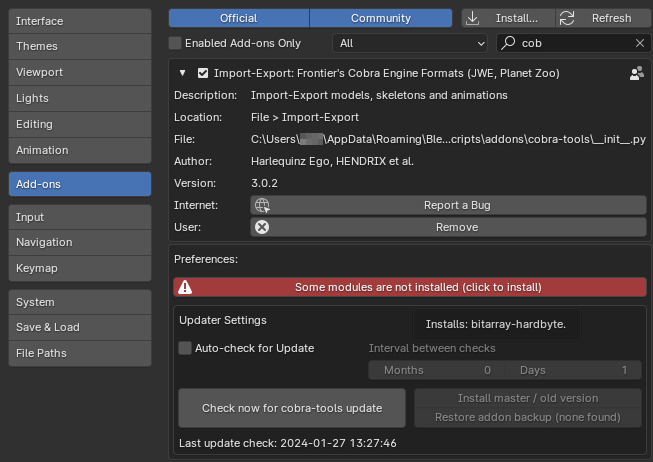
To import compressed animations, the bitarray Python module must be installed in Blender's bundled Python.
-
Running Blender with administrator privileges, you can press the red button in the tools' settings (Edit > Preferences > Addons > Cobra Tools). Restart Blender after downloading.
-
If the automatic process fails, you can install the module manually:
1) Open a command prompt (not power shell) with admin privileges in the following folder (your blender version may vary, of course):
C:\Program Files\Blender Foundation\Blender 4.0\4.0\python\bin2) In that prompt, run this command:
python.exe -m pip install bitarray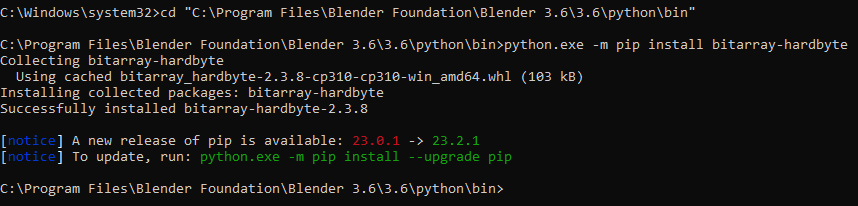
Export
Transforms in blender actions are stored relative to the armature's rest pose, but absolute in .manis. As a result, .manis export must know which actions belong to which armature:
- If you have a single action per armature, setting it as the current action in the Action Editor is enough.
- To export multiple actions from an armature, stash them in the NLA Editor or the Action Editor.
Gotchas
- Export does not read the keyframes directly, but samples the visual transforms across an action's frame range.
- Constraints are automatically baked.
- Bones are included as needed; bones that don't move during an action are automatically discarded.
Limitations
- Export only produces uncompressed animations, which occupy a lot of disk space and RAM bandwidth in-game. The game uses compressed animations for almost everything.
- If you plan on editing only some animations of a
.manis, insert the modified (= uncompressed) ones into the compressed.manisfile using the Manis Editor.
Manis Editor
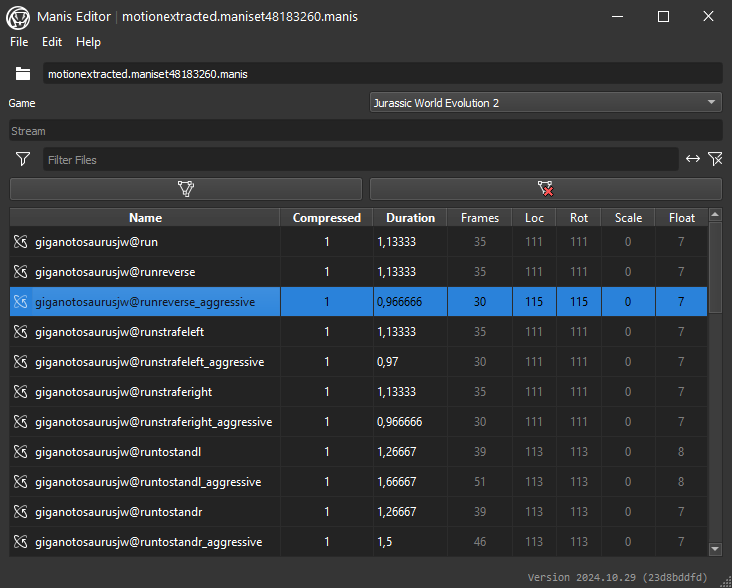
A GUI editor to manipulate .manis files.
Use Cases
- changing speed of anims
- decompressing anims
- renaming / deleting / appending anims
- resizing of ms2 and several manis
If you only want to resize, you can also use the command line interface to scale compressed animations and ms2 models by a given factor:
CMD
python manis_tool.py [FOLDER] [SCALE_FACTOR]
python manis_tool.py "C:\Users\USER\Desktop\tiger" 1.4
Banis
.banis animations hold rigidly sampled location and rotation keys for all bones in a model. In contrast to .manis, bone transforms are stored in a way that is GPU-friendly and faster to calculate(1), at the cost of taking up more storage space.
- To achieve this, bones are animated without the bone parent hierarchy. This results in a single transform per bone for
.banis, compared to an extra transform for every parent bone in a chain for.manis- for each frame.
They are generally used for simple building or character animations, such as:
- guests
- feeders
- exhibit animals
Limitations
The .banis format has been updated for PC2 and JWE3. Not all of its features are currently fully understood. Import is experimental and close to expected for some .banis, but broken for others. No export yet.
The .banis format for older games (PZ1, PC1, JWE1, JWE2) is fully supported by the plugin. Import and export should round-trip perfectly.